
The Best Expense Tracker for Google Sheets — Automated by AI
Last updated: April 2026
The AI-powered receipt scanner to Google Sheets. Snap a photo, forward an email, or connect Gmail — AI extracts every detail into YOUR Google Sheet. Vendor, amount, date, tax, category. Zero typing.
Join 2,500+ businesses already tracking expenses with ExpenseBot
You'll sign in with Google next — takes 30 seconds, read-only access.
60-day free trial · No credit card · Cancel anytime
Watch: 30 seconds from receipt to spreadsheet
2-minute walkthrough of all import options
Now With Apple Wallet Import
The Google Sheets expense tracker now pulls receipts from Apple Wallet automatically. Any receipt stored in Apple Wallet — from Apple Pay transactions, app purchases, or receipts saved via Wallet from merchant apps — syncs into your expense sheet alongside your Gmail receipts. See the Apple receipt scanner page for setup.
Need AI-powered receipt scanning behind the sheet, or a ready-made expense tracker template to start from? Both are available free. The AI tracker auto-fills the same Google Sheet structure the template uses — start with either and you'll end up at the same place. Each receipt image is also archived in Drive via the Google Drive receipt scanner, and the whole pipeline runs on Google Workspace for IT-approved team rollouts. Deciding between Google Sheets and Excel? See the Google Sheets vs Excel comparison for an honest breakdown by cost, collaboration, and formula depth. Coming from a paid expense app? Here's how the free Google Sheets approach holds up as an Expensify alternative — same automation, your data in your own Drive, $10/mo flat.
Why Templates Aren't Enough
Free spreadsheet templates still require manual data entry. ExpenseBot does it for you.
At 50 receipts/month × 2 min each = 100 minutes saved. That's over 1.5 hours for $10.
Want a free template to get started? Download our expense tracker template →
How to Set Up Your Google Sheets Expense Tracker
Start with the free template — then connect ExpenseBot to auto-fill it from Gmail. Three steps, under 5 minutes.
Download the free template
Click below — Google Sheets opens in your Drive with categories, a mileage log, and monthly summaries built in. No signup needed.
Connect ExpenseBot
Sign in with Google. Gmail scanning automatically fills in your expenses overnight — vendor, amount, date, tax, category. Zero typing.
Review and export
Check monthly summaries and categories in the sheet. Export a tax-ready report to QuickBooks, Xero, CSV, or PDF in one click.
Why a Receipt Scanner to Google Sheets Beats Manual Templates
Searching for an expense tracker template or Google Sheets budget template? We get it — spreadsheets are familiar, free, and flexible. But manual templates break down fast: you forget to log expenses, categories get messy, and building an expense report in Google Sheets by hand is a nightmare at tax time.
ExpenseBot gives you everything a manual template does — expenses organized in YOUR Google Sheets — plus AI automation that eliminates the manual work:
Your data stays in YOUR Google Drive. Same spreadsheet. Same Google Sheets. ExpenseBot turns Google Sheets into a complete Google spending tracker and income and expense worksheet — with AI doing the data entry for you. It's the expense tracker spreadsheet you always wanted, without the manual work.
Receipt Scanner to Google Sheets — 6 Ways to Capture
Every method = automatic extraction to Google Sheets with receipt image linked
Google Photos
Bulk import 100+ at once
PDF Upload
Drag & drop bulk PDFs
Snap a Photo
Camera in browser
Screenshots
Paste or upload
Forward Email
receipts@expensebot.ai
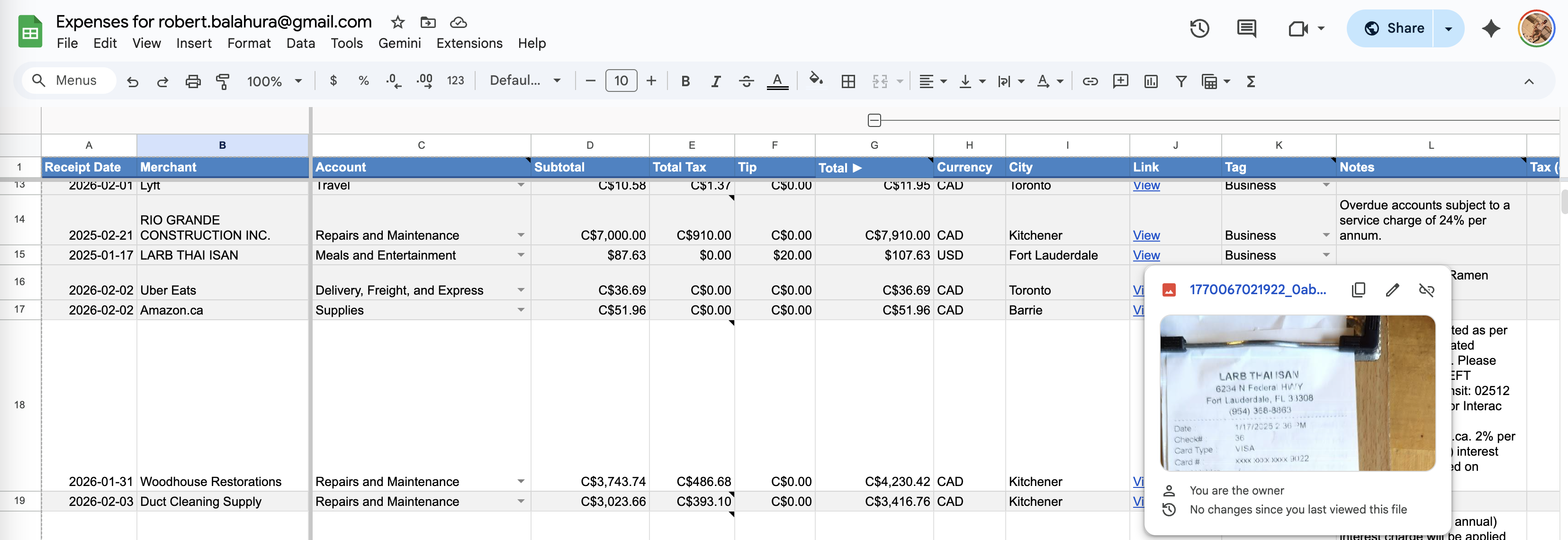
💡 Every expense row links to the original receipt image in your Drive
Scan Receipts to Google Sheets — Automated, Not Manual
Most Google Sheets expense templates require you to type every expense in by hand. The receipt scanner to Google Sheets approach is fundamentally different: you capture the receipt once — photo, Gmail, or PDF — and AI extracts every field automatically.
Automated receipt scanning means vendor name, amount, date, tax, and category land directly in your spreadsheet row with no manual input. Gmail scanning runs overnight — by morning, every receipt from the previous day is already categorized in your sheet. For photos and uploaded PDFs, processing takes under 30 seconds per receipt.
The difference between scan receipts to sheets (automated) and a manual template isn't just speed — it's accuracy. Manual entry misses receipts, introduces typos, and doesn't catch tax splits. Automated scanning captures everything: GST/HST/PST, tip lines, multi-item receipts, and even partially readable thermal paper.
How the Receipt Scanner to Google Sheets Flow Works
Capture Receipts
Photo: Snap with your phone, syncs via Google Photos. Gmail: AI scans your inbox overnight. Upload: Drag & drop PDFs or images. Forward: Email to your ExpenseBot address.
AI Extracts the Data
AI reads each receipt — even crumpled, blurry, or faded thermal paper. Extracts vendor, amount, date, tax, payment method, and category. No manual typing.
Data Goes to Google Sheets
Each receipt becomes a row — organized by date, searchable by vendor, filterable by category. Original images linked and stored in your Google Drive.
Automated, But Still Yours
ExpenseBot creates reports and summaries automatically. But it's a real Google Sheet — power users can add formulas, pivot tables, or custom columns. Your spreadsheet, your way.
Share & Export
Share your report with your accountant — they can export directly to QuickBooks, Xero, Sage, NetSuite, FreshBooks, or CSV. Formatted perfectly for each software with receipt images linked.
Ready to Automate Your Expense Tracking?
Get your AI-powered expense tracker set up in 30 seconds — no credit card required.
Start Tracking in Google Sheets — Free →Join 2,500+ businesses already tracking expenses
Part of the Complete Google Integration
Google Sheets is just one part of ExpenseBot's native Google integration. Combine it with Gmail auto-scan, Google Photos bulk import, and Google Drive storage for a complete expense solution that lives entirely in your Google ecosystem.
See the Full Google Integration →Explore More Expense Tracking Tools
ExpenseBot works across your entire Google ecosystem
"Take a picture of a receipt and the AI sorts it into a Google Sheet with the correct tax categories. Also scans email for invoices. Ease of use is outstanding."— Bradley MacDonald, Business Owner (★★★★★ on Trustpilot)
"Initially I didn't think it was going to work out but it actually did a good job of pulling everything together and getting it on an Excel spreadsheet that my bookkeeper can work with."— Jamie P. (Verified ExpenseBot User)
Frequently Asked Questions
How does the Google Sheets expense tracker work?
ExpenseBot uses AI to scan your receipts (from photos, Gmail, Google Photos, PDFs, screenshots, or forwarded emails) and automatically extracts vendor name, amount, date, tax, and category. The resulting expense rows and receipt links go into a Google Sheets spreadsheet stored in your own Google Drive.
Where is my expense data stored?
Your durable expense records are stored in Google Sheets files in YOUR Google Drive. You maintain ownership and control of those files and can access, edit, share, or export them directly from Google Sheets. Limited service metadata and temporary processing are described in the Privacy Policy.
Are receipt images included with each expense?
Yes! Every expense row in your spreadsheet includes a clickable link to the original receipt image stored in your Google Drive. This creates audit-ready documentation that your accountant will love.
Does it handle foreign currency receipts?
Yes. Foreign receipts are automatically converted to your home currency using the exchange rate on the date of the receipt. Perfect for business travelers.
How are expenses categorized?
AI automatically assigns each expense to the correct G/L account (category). You can create custom categories, and the AI learns and groups them automatically. Categories map to your accounting software's chart of accounts.
Can I tag expenses by trip, project, or client?
Yes. Tag expenses as you capture them, or write it on the receipt and AI catches it automatically. Perfect for expense reports, client billing, or project tracking.
Does it work with receipts from Gmail?
Yes. ExpenseBot automatically scans your Gmail overnight and finds receipts from Amazon, Uber, airlines, hotels, subscriptions, and more. All extracted data goes directly to your Google Sheets expense tracker.
Can I connect my credit card?
Yes. Connect your credit card or upload a bank statement. ExpenseBot matches receipts to transactions and alerts you to any missing expenses so you never miss a deduction.
What do I get at year-end?
ExpenseBot generates a complete year-end tax report with all receipts organized by date and category, totals summarized by G/L account, and for freelancers - deductible percentages calculated with tax form line items (USA & Canada).
Can I export to accounting software?
Yes. One-click export to QuickBooks Online, Xero, Sage 50, NetSuite, FreshBooks, Zoho Books, or download as CSV/Excel. Each export is formatted specifically for your accounting software.
Can I track expenses in Google Sheets?
Yes. ExpenseBot is a fully automated expense tracker that lives inside Google Sheets. AI scans your receipts from photos, Gmail, Google Photos, PDFs, or forwarded emails and extracts vendor, amount, date, tax, and category directly into your spreadsheet. No manual data entry required.
What is the best expense tracker for Google Sheets?
ExpenseBot is the best expense tracker for Google Sheets because it automates the data entry that manual templates require. AI reads receipts and fills in your spreadsheet automatically, categorizes expenses to tax-ready accounts, converts foreign currencies, and generates year-end reports — all within your familiar Google Sheets interface.
How do I automate expense tracking in Google Sheets?
Sign up for ExpenseBot with your Google account. It creates an expense tracker spreadsheet in your Google Drive and automates data entry via AI. Snap photos of receipts, connect Gmail for overnight scanning, or bulk import from Google Photos. AI extracts every detail and populates your Google Sheet automatically.
Is there a free expense tracker template for Google Sheets?
Yes — ExpenseBot offers a free Google Sheets expense tracker template. But unlike static templates that require manual typing, ExpenseBot's template is powered by AI that auto-fills your expenses. Try it free for 60 days with no credit card required. You can also download our basic manual template at expensebot.ai/expense-tracker-template.
Does Google have a spending tracker?
Google doesn't have a built-in expense tracker, but Google Sheets is the most popular free tool for tracking expenses. ExpenseBot automates this — it scans your Gmail for receipts and populates a Google Sheet automatically. No manual entry required.
Does Google have an expense tracker?
Google doesn't have a built-in expense tracker, but Google Sheets is the most popular spreadsheet for expense tracking. ExpenseBot auto-populates a Google Sheet with your receipts — scanned from Gmail, categorized by AI, and ready for tax filing. Everything stays in your own Google Drive.
Does Google Sheets have an expense tracker?
Google Sheets doesn't ship with a ready-made expense tracker, but it's the most popular free tool for building one — and ExpenseBot turns it into a fully automated tracker. AI scans your receipts from Gmail, photos, and PDFs, fills the spreadsheet for you, categorizes each expense, and stores everything in your own Google Drive.
Stop Typing Receipts Into Spreadsheets
You love Google Sheets. We get it. ExpenseBot keeps everything in Sheets — but AI does the typing for you. 6 ways to capture receipts. Auto-categorized. Multi-currency converted. Year-end tax report generated.
Try it free for 60 days — no credit card required.
✓ No credit card required • ✓ Data in YOUR Google Drive • ✓ Cancel anytime
✓ Receipt images linked • ✓ Auto-categorized to G/L • ✓ Multi-currency converted
✓ Export to QuickBooks, Xero, Sage • ✓ Year-end tax report • ✓ Accountant-friendly